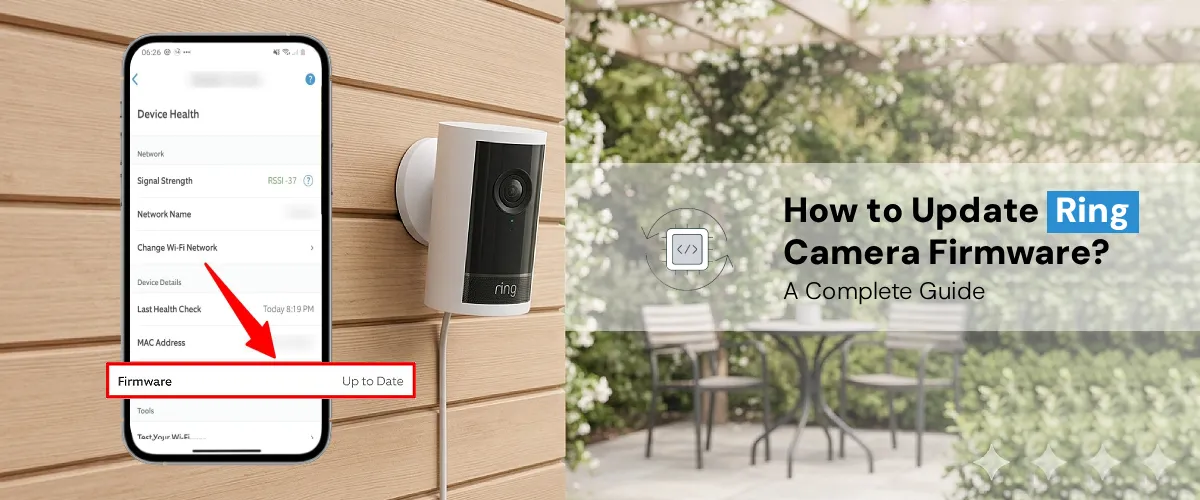
To update your Ring camera firmware, open the Ring App and check the device status. Firmware updates are usually automatic when the camera is connected to Wi-Fi and plugged into power. Keep the device online and wait for the update to complete.
Keeping your Ring camera running smoothly starts with one often-overlooked step: making sure its firmware is updated at all times. A Ring firmware update patches security vulnerabilities, improves motion detection accuracy, fixes connectivity bugs, and unlocks new features. Yet most Ring owners never think about firmware until something breaks. This guide walks you through everything you need to know to update Ring camera firmware safely and efficiently.
What is Ring Camera Firmware and Why Does it Matter?
Firmware is the low-level software embedded in your Ring device that controls how its hardware operates. Think of it as the operating system of your camera. Without regular Ring Camera firmware updates, your device can become
- Older firmware often contains unpatched weaknesses that hackers can leverage to gain access to your live feeds.
- Glitches in video streaming, night vision, and two-way audio are frequently resolved through firmware patches.
- The Ring app regularly ships new capabilities that require a minimum firmware version to function.
- In some cases, outdated firmware can cause authentication failures during login, blocking access to your account dashboard entirely.
Ring releases firmware updates continuously in the background, but knowing how to verify, trigger, and troubleshoot these updates puts you in control of your home security.
Does Ring Update Firmware Automatically?
Yes, ring devices are designed to receive firmware updates automatically over Wi-Fi when the camera is connected, powered, and idle (typically overnight). However, automatic updates depend on a stable internet connection and the camera not being in active use.
Automatic updates may be delayed or skipped if:
- Your camera frequently loses Wi-Fi signal
- You have a weak or congested home network
- The device is continuously recording or streaming
- Ring’s servers are undergoing maintenance
This is why it pays to know how to update Ring firmware manually as well.
How to Update Ring Camera Firmware: Step-by-Step
Step 1: Check Your Current Firmware Version
Before triggering an update, verify what firmware version your camera is currently running.
- Open the Ring app on your iOS or Android device.
- Tap the three-line menu in the top-left corner.
- Select Devices, then choose the specific camera you want to check.
- Tap Device Health.
- Scroll down to the Device Details section, and you’ll see your current Firmware version listed here.
If the firmware version reads “Up to Date,” your camera is already running the latest release. If it shows a version number or “Update Available,” proceed to the next steps.
Step 2: Ensure Your Ring Camera is Ready for an Update
A Ring camera firmware update requires optimal conditions to complete without errors:
- Ensure your camera has a strong signal (check the RSSI value in Device Health; anything between -40 and -60 dBm is ideal).
- For battery-powered Ring cameras, charge the battery to at least 50% before initiating an update.
- Ongoing activity can interrupt the update process.
- Outdated app versions sometimes fail to push firmware correctly. Update the Ring app from the App Store or Google Play first.
Step 3: Trigger the Firmware Update Manually
Ring does not always expose a direct “Update Now” button, but you can prompt the camera to check for and download the latest firmware:
- Open the Ring app and navigate to Devices.
- Select your camera and tap Device Health.
- Tap Check for Updates (available on most Ring models). If this option is greyed out, your firmware is already current.
- If an update is available, tap Update Ring Camera Firmware and wait. The process typically takes 2 to 5 minutes.
- Do not close the app, turn off the camera, or disconnect Wi-Fi during this period.
For Ring doorbells and floodlight cameras, the process is identical, navigate through Device Health within the Ring app.
Step 4: Reboot the Camera After Updating
Once the update completes, a quick reboot ensures the new firmware initialises correctly:
- In the Ring app, go to Device Health and select Reboot This Device.
- Alternatively, press and hold the physical Setup button on the camera for 10-15 seconds to perform a manual reboot.
After rebooting, re-check the firmware version under Device Details to confirm the update was successfully applied.
How to Update Ring Firmware via Ring.com
For users who prefer managing their devices via desktop, you can also check firmware status through your ring.com login dashboard:
- Visit ring.com and sign in to your account.
- Click Devices in the left-hand navigation panel.
- Select your camera and open Device Health.
- The firmware version will be displayed. While you cannot push updates directly from the web dashboard, you can use this view to verify whether your camera is running the latest version, then use the mobile app to trigger the update.
Setting Up a New Ring Camera With the Latest Firmware
If you’re going through Ring camera setup for the first time, firmware is one of the first things Ring handles automatically. During setup, the Ring app detects your new device, connects it to your Wi-Fi, and triggers any pending firmware updates before completing the installation. This means new cameras are typically up to date right out of the box, as long as your internet connection is stable throughout the setup wizard.
Troubleshooting Ring Firmware Update Not Working Issue
If your update keeps failing or your Ring app not working correctly, try the following fixes:
- Force-close and reopen the Ring app. Memory leaks in the app can stall firmware downloads.
- Ring devices on 5GHz networks sometimes have update issues; temporarily switch to 2.4GHz.
- In rare cases, de-registering and re-registering the camera in the app forces a clean firmware pull.
- Hold the Setup button for 20+ seconds. This wipes the device and forces it to download the latest firmware during reconfiguration.
- If none of the above works, Ring’s support team can push a firmware update server-side for your specific device ID.
How Long Does a Ring Firmware Update Take?
Most updates are complete within 2 to 10 minutes. Larger updates on devices with slower Wi-Fi connections can occasionally take up to 20 minutes. During this time, the camera’s LED will typically pulse or blink to indicate activity. Do not power cycle or reboot the camera until the LED returns to its normal state.
The Final Word
Keeping your Ring camera firmware current is one of the simplest yet most impactful things you can do for your home security. Whether you let Ring handle it automatically overnight or prefer to update Ring camera firmware manually through the app, staying on the latest firmware ensures your cameras are protected, performing optimally, and compatible with the latest Ring features. Set a monthly reminder to check Device Health for all your Ring devices; it takes under two minutes and keeps your security ecosystem running without a hitch.
FAQs
Open the Ring app, go to Devices, select your camera, click on Device Health, and scroll to Device Details. If the firmware field shows a version number rather than “Up to Date,” an update is available.
Not directly. Ring firmware updates are delivered through Ring’s cloud servers and require the Ring app to initiate or monitor.
If an update fails mid-process, the camera typically rolls back to its previous firmware version to remain functional. Reboot the camera and retry the update.
A brief offline period immediately after a Ring camera firmware update is normal; the device reboots to apply changes. Wait 2-3 minutes, then check the Ring app. If the camera remains offline, power-cycle it by unplugging (wired models) or removing and reinserting the battery.
No. A firmware update does not delete your camera settings, motion zones, alert preferences, or cloud recordings. Your Ring account data is stored server-side and remains completely untouched during the update process.