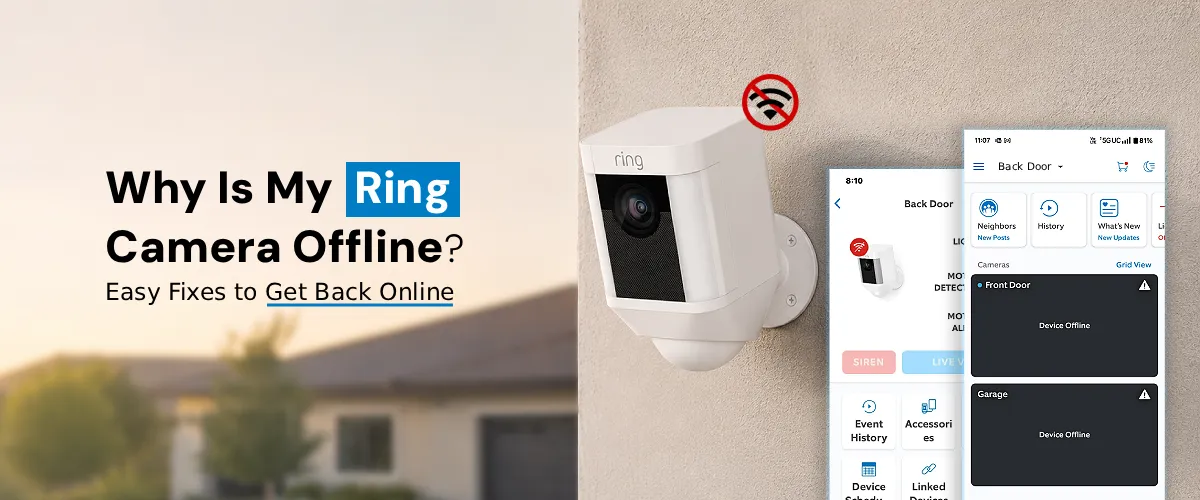
To fix Ring camera offline issue, check WiFi connection, restart router and camera, and ensure strong internet signal. The Ring application needs updating, and you should re-add the device if required while checking power supply. If Ring Device is still offline, needs reset the camera and you must connect it again to network.
Ring cameras are one of the most reliable home security tools available today. Everything is good until the day you open your app and see the dreaded “Ring camera offline” notification. Whether your Ring Doorbell offline status appears out of nowhere or your Ring camera keeps going offline repeatedly, troubleshooting the issue can take a toll on your networking ability. This blog will walk you through every possible cause and fix the issue in plain, simple language.
Why is the Ring Device Offline?
Before jumping into fixes, it helps to understand why a ring camera offline situation happens in the first place. The most common culprits are the following:
- Weak or dropped Wi-Fi signal
- Power interruptions (battery drain or tripped breaker)
- Router or modem issues
- Ring app or firmware glitches
- Physical obstructions between the camera and router
- ISP outages
The good news? Most of these are easy to fix at home without calling support.
Fix 1: Check Your Internet Connection First
One of the most confusing scenarios is when Ring is offline but WiFi is working, at least, it appears to be working. Here is what to check:
- Test your internet on another device. Open a browser or stream a video on your phone or laptop. If that also struggles, the problem is with your router or ISP, not Ring.
- Restart your router and modem. Unplug both devices, wait 30 seconds, then plug the modem back in first. Once the modem is fully connected, plug the router back in. Wait another 60 seconds. This simple step resolves a surprising number of Ring offline issues.
- Check for ISP outages. Visit your internet provider’s website or app to see if there is a service disruption in your area.
- Check the Ring servers. Visit Ring’s official status page (ring.com/status) to confirm their servers are up and running. If there’s a service outage on Ring’s end, you simply have to wait it out.
Fix 2: Address Wi-Fi Signal Problems
A weak Wi-Fi signal is the number one reason your Ring camera keeps going offline. Ring cameras need a stable, strong signal, not just any connection.
Here’s how you can check signal strength:
- Open the Ring app, go to Device Health for your camera, and look for the RSSI value. RSSI stands for Received Signal Strength Indicator.
- A value between 0 and -60 is strong. Anything below -60 (like -70 or -80) means the signal is weak and unreliable.
- Move your router closer to the camera if possible, or move the camera closer to the router during testing to confirm signal is the issue.
- Use a Wi-Fi extender or Ring Chime Pro. Ring’s own Chime Pro acts as a Wi-Fi extender specifically optimised for Ring devices. If your camera is far from your router or on the other side of thick walls, this is one of the best long-term solutions.
- Switch your Wi-Fi band. Most modern routers broadcast on both 2.4 GHz and 5 GHz. The 5 GHz band is faster but has a shorter range. The 2.4 GHz band is slower but penetrates walls better.
- For Ring cameras placed far from your router, connect to the 2.4 GHz network for a more stable connection. You can change this during Ring setup WiFi in the app.
Fix 3: Reconnect Your Ring Camera to Wi-Fi
If your camera has lost its Wi-Fi connection, you will need to manually reconnect it through the app. This is essentially a repeat of the Ring setup process, and it is straightforward.
- Open the Ring app on your phone
- Tap the three lines in the top left to open the menu
- Select Devices and choose your camera
- Tap Device Health
- Tap Reconnect to WiFi or Change WiFi Network
- Follow the on-screen prompts to reconnect
Make sure your phone is connected to the same Wi-Fi network you want the Ring camera to use. The app will walk you through putting the camera into setup mode and connecting it to your network.
Fix 4: Reboot the Ring Camera
Sometimes all your camera needs is a fresh restart.
Soft reboot:
- For battery devices, remove the battery, wait 10 seconds, and reinsert it. For wired devices, switch the breaker off, wait 30 seconds, and switch it back on.
- Using the Ring app: Go to Device Health and look for the Reboot This Device option if available on your model.
A soft reboot clears temporary software glitches that can cause the Ring camera offline issue without erasing any of your settings.
Fix 5: Update Firmware and the Ring App
Outdated firmware or an outdated app can cause connectivity problems. Ring cameras update their firmware automatically when connected to Wi-Fi, but if your camera has been offline for a while, it may have missed updates.
Once you get the camera back online, leave it connected and powered for at least 30 minutes to allow any pending firmware updates to install. Also, check your phone’s app store for any available Ring app updates.
Fix 6: Factory Reset Ring Camera
If none of the above fixes work, a factory reset is your last resort before contacting Ring support. A factory reset will erase all settings and return it to its out-of-box state. You will need to set it up again from scratch using the Ring app.
How to reset the Ring device:
- Most Ring cameras have a small orange or black setup button, usually on the back or side of the device
- Press and hold this button for 10-20 seconds until the light on the front flashes or changes
- Wait for the camera to complete the reset process (about 1–2 minutes)
- Re-add the device in your Ring app using your Ring account login credentials and go through Ring setup again
The Final Word
If your Ring camera keeps going offline even after trying all of the above, the issue may be a hardware defect. Contact Ring customer support at ring.com/help. If your device is still under warranty, Ring may replace it at no cost.
FAQs:
Open the Ring app, go to Devices, select your camera, then tap Device Health and choose Reconnect to WiFi. Follow the prompts to reconnect. Make sure your phone is on the same network you want to connect the camera to.
Move your router closer to the camera, switch to the 2.4 GHz band for better range, use a Ring Chime Pro as a Wi-Fi extender, and check the RSSI value in Device Health. Values between 0 and -60 indicate a strong enough signal.
Once you initiate reconnection through the app, it typically takes 1-3 minutes for the camera to reconnect and come back online. If it takes longer, restart the camera and try again.
Yes, absolutely. When the battery drops too low, Ring cameras lose the power needed to maintain a Wi-Fi connection and will go offline. Check battery levels regularly in the Ring app under Device Health and recharge when it falls below 20%.
Start with a router restart and soft camera reboot. If it is still offline, reconnect via Ring WiFi in the app. If that fails, perform a factory reset and set it up fresh. If nothing works, contact Ring support, there may be a hardware issue covered under warranty.