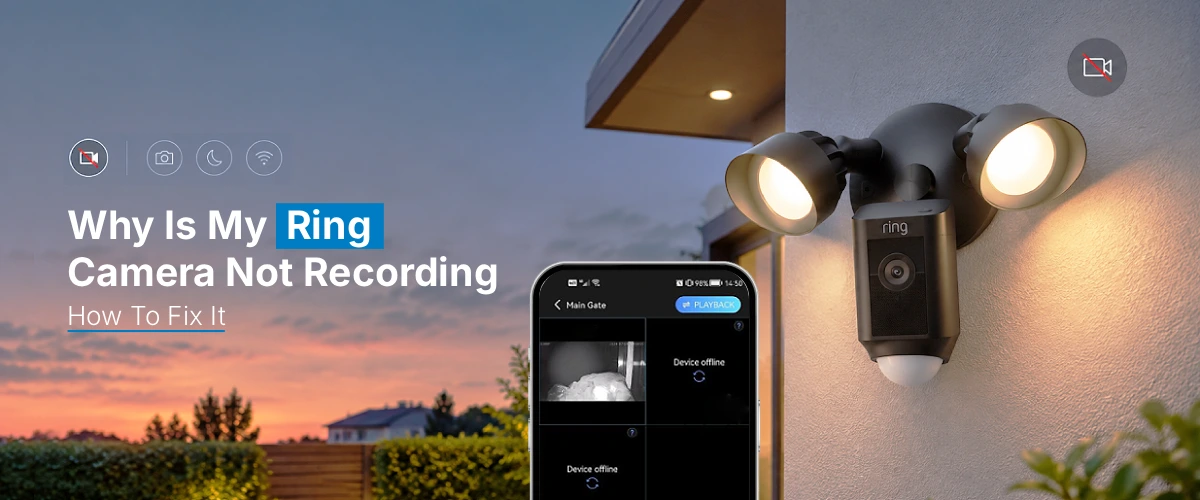
If your Ring Camera is not recording, check your WiFi connection and ensure your camera has sufficient battery power or a stable power supply, review motion detection settings and recording schedules, verify your Ring subscription is active, update the Ring app and camera firmware, then restart your device to resolve temporary recording issues.
Ring security cameras are helpful devices for every home and apartment, ensuring the owners that they can monitor the situation at home even when they are not at home. With these gadgets, you can get motion detection and receive alerts on your smartphone. Unfortunately, sometimes the Ring camera stops recording, which results in you not being able to watch the event you are interested in. The problem may occur because of an expired Ring subscription, inappropriate motion settings, etc. This blog provides you with solutions for your Ring camera not recording issues.
Why Is My Ring Camera Not Recording?
Several things may happen that may prevent your Ring camera from saving video. Knowing what is happening will help you find a practical solution without losing your precious data by restarting your device.
- No active subscription: You need an active subscription to a Ring plan that allows you to save videos to the cloud and view them on your mobile device.
- Motion detection is disabled: This may happen if you have disabled the motion detection setting in your camera.
- Wi-Fi connection: Your Ring camera needs a steady and stable Wi-Fi connection to record, save, and upload your videos.
- Zones and sensitivity: Having incorrectly set motion detection zones or having the sensitivity set too low can also cause this issue.
- Power supply: A dead battery or a faulty power bank can also be a reason for your Ring camera to stop recording.
- Software glitches: Having an updated application or a smartphone with stable performance can avoid such issues.
How to Fix the Ring Camera Not Recording Events?
Follow the instructions below to troubleshoot and fix the Ring camera not recording issue:
1. Check Subscription: Confirm that your Ring subscription is active and allows video recording
2. Turn on Motion Detection: Open the Ring app, go to the camera you want to set up, and make sure that motion detection is enabled and recording is turned on.
3. Check the Internet: Ensure your camera has an active internet connection.
4. Restart the Device: Restart your camera to refresh the system and fix any temporary glitches.
5. Update the App: Make sure your Ring app is updated to the latest version. Also, check if there are any firmware updates available for your camera.
6. Check the Power Supply: Make sure your camera is charged or connected to a reliable power source.
7. Check the Camera’s Recording: Walk in front of the camera to trigger its motion detector and ensure it records events correctly.
How to fix Ring camera not recording motion?
Incorrect settings are a common reason why a Ring camera fails to record motion. So, focus on the given solution.
- Launch the Ring app on your smartphone.
- Choose the camera you want from the list of devices on the screen.
- Ensure that the Motion Detection mode is turned on.
- Go to Motion Settings and check your motion zones.
- Change motion sensitivity if the camera fails to react to movements.
- Verify if there are motion schedules or special modes that impact the recording.
- Test the camera to see if it tracks objects by walking in its field of view.
Note: The menu options may vary depending on the camera and the version of the application. Be aware that motion detection and video recording are two separate functions, so getting a motion notification does not guarantee that a video has been stored.
Sign in to the Ring app again if the preceding steps fail
If all solutions fail, make sure that your account is correct. Try using the Ring App login to see if you can access the camera in question. Make sure your subscription and device are found under the account you’re trying to view them on. As a final test, try a factory reset if the model is capable of one. The device should be wiped clean and then set up once more.
How to connect a Ring camera to wifi?
A weak or unstable network can cause your Ring camera to malfunction. Here is how to fix the existing connection:
- Go to the Ring app and open the menu for your camera.
- Go to Device Settings → Device Health.
- Check the status of your network and signal strength.
- Restart your router if it is unstable.
- Move your camera closer to the router or improve the router coverage by using an appropriate extender.
- Reinstall your camera on the preferred Wi-Fi network if needed. Make sure to follow the instructions for your camera model.
- Check if the issue is resolved after the connection is stable. A Ring camera requires a home Wi-Fi network to function properly.
Update the Ring camera app and Camera Firmware
Outdated software may cause unexpected behavior from the camera, which is also a reason my Ring camera is not recording. So, open up your app store and make sure you have every Ring app update installed. Visit the settings or Device Health to check for Camera firmware. Make sure to allow your camera to remain powered on and connected to the internet for any automatic firmware updates.
Key point: To update Ring camera firmware, please follow the instructions provided by your camera model. Don’t interrupt the Ring camera update process.
Common Issues and Solutions
- Camera detects motion but does not save video: Check the subscription status and recording settings.
- Camera works, but no recordings occur: Make sure there is an active paid plan that allows video recording.
- No motion event: Check motion zones, sensitivity, and schedules.
- Camera goes offline often: Make sure the camera has a stable power supply and Wi-Fi connection.
- Recordings stop after a power failure: Turn the camera back on, reconnect it to the network, and check if it resumes recording.
FAQs:
Verify your Ring subscription and Motion Detection settings, as well as your camera’s modes, motion schedules, and connection. Motion alerts and recordings are two distinct functions, and just because one is on does not mean the other will work.
A Ring subscription is required to access and store cloud recordings of your Ring videos and doorbell. You can check what plan you have subscribed to in your account and which devices it covers. Your Ring devices’ cloud recordings will only be accessible if you have an active plan and subscribe to it.
You must first locate the reset button on your Ring camera in order to complete this procedure. It is advised that you double-check the manufacturer’s website for your particular camera model before attempting any factory reset since the precise processes may differ for each. If you want to reset your Ring camera to its original settings, you’ll have to reconfigure all of the settings.
Your Ring camera requires a wifi connection in order to function properly and record videos of events. If you don’t have a Wi-Fi connection, your Ring camera will be unable to connect to the cloud and upload new event videos to your account.
While your Ring camera’s live view is operating, you may not get the event recording. First and foremost, make sure your Ring subscription is current. Check your Ring camera’s motion detection settings, recording settings, and connection status. If the issue persists, try turning your camera off and back on again.
Reconnect the device to power, check that it is linked to wifi, examine the battery, and double-check all of your camera’s health and recording settings. Consider restarting your camera if any of these actions fail. When the Ring camera is connected to power and wifi, it should be able to reconnect. Check the device’s health, power, and recording settings once more. As a test, walk through the area where your Ring camera’s motion detection is enabled and see if it appears in the app.
Final Outcome
A Ring camera not recording might cause worry about the protection of your property. To restore it, first, double-check that your Ring subscription is up to date and that Motion Detection is turned on. If not, check your Ring camera’s wifi connection, power, and camera settings, as well as your Ring app’s settings. When modifying your settings, make sure your Ring camera is working correctly.
If none of these recommendations work, contact Ring’s customer support service and provide them with your camera model and the following troubleshooting steps.