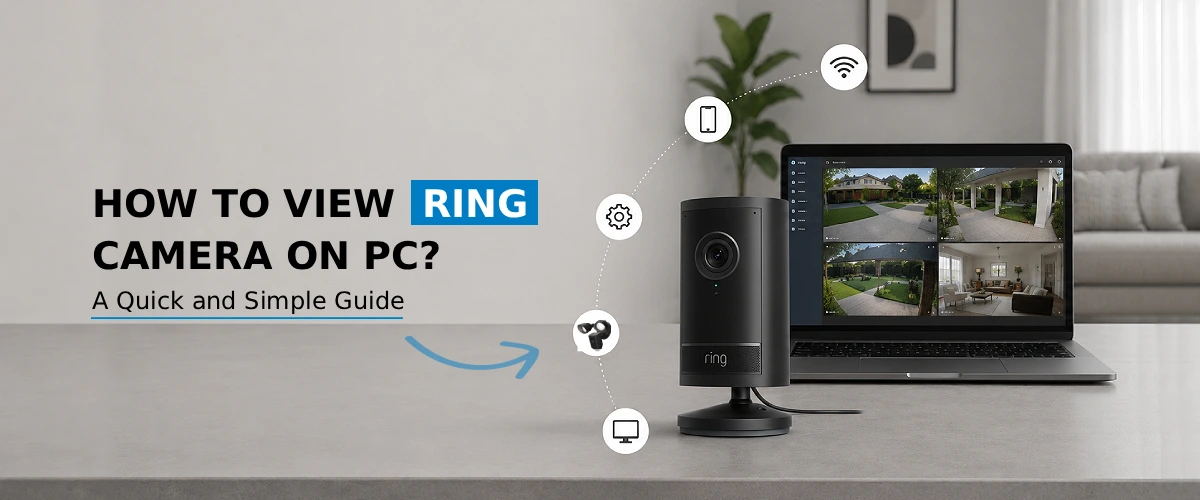
You can easily view your Ring camera on PC by logging into your account at ring.com through any web browser, no separate desktop app required. Once signed in, you can access live footage, review recorded events, and manage your device settings directly from your computer screen. This guide walks you through every step, from initial setup to troubleshooting common viewing issues.
Ring cameras are built primarily around the mobile app, but plenty of homeowners and business owners prefer to view Ring camera on PC instead of squinting at a phone screen. Whether you’re monitoring your front porch while working at your desk or reviewing footage on a bigger display, watching your Ring feed on a computer is entirely possible and simple to set up. This guide breaks down exactly how to get your camera live view working on a Windows or Mac computer, along with troubleshooting tips and firmware guidance to keep everything running smoothly.
Why You Should Consider Viewing Ring Camera on PC?
There are several practical reasons households and businesses prefer viewing Ring camera on PC rather than relying solely on a smartphone:
- Bigger screen, better detail- A monitor makes it far easier to spot faces, license plates, or package details.
- Monitor multiple cameras at once- If you have several Ring devices, a PC makes it simpler to keep an eye on all of them simultaneously.
- Convenient for desk-based work- You don’t have to switch between apps on your phone while working.
- More stable connection- PCs are often connected via Ethernet, which typically results in smoother video streaming compared to a spotty mobile connection.
Before You Start: Ring Setup
Before you can watch anything on your computer, your Ring Camera setup needs to be complete. This means the camera should be powered on, mounted securely, and linked to your Ring account via the Ring mobile app. If you haven’t done this yet:
- Download the Ring app on your smartphone.
- Create a Ring account or sign in to an existing one.
- Follow the in-app instructions to connect your camera to your home Wi-Fi network.
Once your camera is fully set up and online, it will automatically start sending footage to your Ring cloud account—which is what makes PC access possible in the first place.
How to View Ring Camera on PC?
Ring has discontinued its old standalone desktop application, so the official and most reliable way to use Ring on a computer today is through a web browser. Here’s exactly how to do it:
Step 1: Go to the Ring Camera Login Page
Open your preferred browser and navigate to ring.com. This is the official Ring login portal for desktop access.
Step 2: Sign In to Your Account
Click “Sign In” and enter the same email address and password you used during your mobile setup. You may be asked to verify your identity with a two-factor authentication code sent to your phone—this is a normal security step, not an error.
Step 3: Access Your Dashboard
Once logged in, you’ll land on your Ring dashboard, where all your connected devices are listed.
Step 4: Select Your Camera
Click on the specific camera or doorbell you want to view.
Step 5: Open Live View
Click the “Live View” button to start streaming your camera’s real-time feed directly in your browser.
How to Live View Ring Camera on PC?
Getting the ring camera live view on PC working smoothly comes down to a few extra details beyond just logging in:
- Keep your browser updated. Outdated browsers are a common cause of live view failing to load.
- Allow camera permissions. Some browsers block video/audio permissions by default—check your browser’s site settings if the stream doesn’t appear.
- Use a stable internet connection. A wired Ethernet connection generally offers a smoother ring camera live view on PC than Wi-Fi, especially with multiple cameras running.
- Avoid too many open tabs or apps. Heavy browser or system load can cause lag or buffering during live streaming.
Once these basics are in place, your ring camera live view on PC should load within a few seconds of clicking “Live View,” giving you real-time access to whatever your camera sees.
Don’t Forget to Update Camera Firmware
An often-overlooked step in viewing Ring camera on PC smoothly is keeping your device firmware current. Ring periodically releases firmware updates that fix bugs, improve video streaming stability, and patch security vulnerabilities. To update Ring camera firmware:
- Open the Ring mobile app (firmware updates are typically pushed here first).
- Go to your device settings and check for available updates.
- Keep your camera connected to Wi-Fi and powered on until the update finishes.
Outdated firmware is a frequent, overlooked cause of streaming errors on PC, so this is worth checking if your live view keeps failing to load.
Troubleshooting PC Viewing Isn’t Working Issue
If you’re having trouble getting your feed to load, try these fixes in order:
- Clear your browser’s cache and cookies.
- Confirm your Ring account credentials are correct and current.
- Restart both your PC and your router to refresh the connection.
- Double-check that your camera shows as “online” in the Ring app.
- Try a different supported browser if the issue persists.
Frequently Asked Questions
No. While the Ring mobile app is required for initial camera setup, you don’t need it installed on your PC. You can view your camera entirely through a web browser by logging in at ring.com.
Yes. Once logged into your Ring dashboard, all cameras linked to your account appear in one list, and you can switch between them or view their live feeds individually from the same browser session.
This is usually caused by an outdated browser, blocked camera permissions, a weak internet connection, or outdated firmware. Clearing your cache, restarting your router, and updating both your browser and camera firmware typically resolves the issue.
Most modern, up-to-date browsers work well, including Chrome, Firefox, Edge, and Safari. The key is making sure whichever browser you choose is updated to its latest version for the smoothest streaming experience.
Yes, viewing your live camera feed on PC through ring.com is free with any Ring account. However, accessing recorded video history and certain advanced features may require an active Ring Protect subscription plan.
The Final Word
Learning how to view Ring camera on PC is a quick process once your device is properly set up. By logging in through ring.com, keeping your browser and firmware updated, and following the troubleshooting tips above, you’ll have a reliable ring camera live view on PC anytime you need it, whether for peace of mind at home or monitoring your business from your desk.