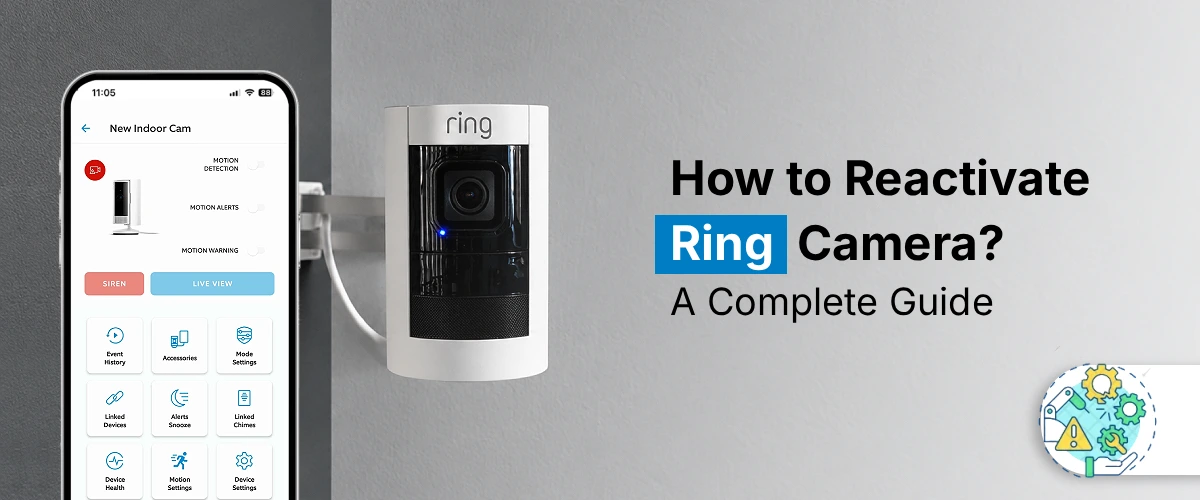
To reactivate Ring Camera, open the Ring app and sign in to your account. Select your camera from the device list and check its connection status. If it is offline, reconnect it to Wi-Fi. Restart the camera if needed. Update the Ring app and firmware to restore normal operation.
A Ring camera that suddenly shows as offline is frustrating, especially when it watches your front door or driveway. The good news is that most inactive devices can be revived in a few minutes without any special tools. Whether you need to reactivate Ring camera doorbell hardware after a power cut or reactivate Ring account access after a long break, the process is easier than it looks. Below, you will learn why devices go inactive and exactly how to get yours working again.
Why Is My Ring Camera Inactive?
A Ring camera usually shows as inactive because it has lost its connection to your home network. This often happens after you replace your router, change your Wi-Fi password, or move the camera farther from the signal. Power is the next common culprit, since a drained battery, loose wiring, or a tripped breaker can shut the device down completely.
Sometimes the problem is with your account rather than the camera. If the device was deleted from the Ring app or transferred to another owner, it will no longer appear as active. An expired subscription can also cause confusion, because a canceled Ring Protect plan stops video recording even though the camera may still work. Outdated app or firmware versions can also make a healthy camera look offline. Working out which of these applies saves time, because each one needs a different fix.
How to Reactivate Ring Camera after Deactivation?
If your camera was deactivated or has gone offline, start with the simple checks before trying anything drastic. Here is the process, step by step:
- Check the power. Fully recharge the battery, or confirm that a wired device is getting electricity.
- Open the Ring app and complete your sign in with your email, password, and verification code.
- Tap the inactive camera on your Dashboard and choose Device Health.
- Tap Reconnect, select your home network, and enter the password to connect Ring to wifi again.
- Open Live View to confirm the video feed is working.
If the camera still does not respond, you may need to reset Ring camera settings. Hold the setup button for about 15 to 20 seconds until the light flashes, then set the device up again from scratch. A reset erases saved settings, so treat it as a last resort.
Ring Doorbell Deactivated: How to Reactivate?
When a Ring doorbell is deactivated, the fix depends on how it is powered. Battery models need a full recharge. Remove the battery pack, charge it with a USB cable until the light shows it is full, then slide it back in. Wired models need steady power, so check your circuit breaker, your transformer, and the wiring behind the doorbell.
Once power is restored, open the Ring app, tap the doorbell and go to Device Health then Reconnect. If the app says the doorbell is no longer set up, choose Set Up a Device and follow the prompts. In most cases, a deactivated doorbell only needs power and a fresh Wi-Fi connection to come back to life.
How to Reactivate Ring Doorbell Subscription?
A lapsed plan does not disable your hardware, but it does stop video recording. To reactivate Ring camera doorbell subscription benefits, Ring sign in to the Ring app or Ring.com, open the menu, and go to Account, then Ring Protect Plan. Choose the doorbell you want to cover, pick Basic, Plus, or Pro, and confirm your payment details. Once the plan status shows as active, new events will be recorded and saved again. Recordings from the inactive period were never stored, so they will not appear in your history.
What If the Ring Camera Was Removed from Your Account?
Removing a camera unlinks it from your account but does not damage the hardware. You cannot simply switch it back on, though. You need to add it again as a new device. Open the Ring app, tap Set Up a Device, select your camera or doorbell type, and scan the QR code on the device. Then follow the prompts to name it and finish setup.
If the app says the device belongs to another account, the previous owner must remove it first. This often happens with second-hand devices. If you closed your entire account, contact Ring Support to ask whether you can reactivate Ring account access. If that is not possible, create a new account and add your devices again.
FAQs
Yes. You can reactivate a deactivated Ring camera by restoring power, reconnecting it to Wi-Fi in the Ring app, and checking Device Health. If the device was removed from your account, set it up again as a new device. A lapsed plan only affects recording, not the hardware.
The most common causes are a lost Wi-Fi connection, a dead battery or power failure, removal from your account, or an expired subscription. Software glitches can also be behind it. Check Device Health in the app to see which issue applies.
Yes, but you must add it again as a new device. Open the Ring app, tap Set Up a Device, and scan the QR code. Removing a camera only unlinks it, so the hardware works normally once it is set up again.
Not always. Restoring power and reconnecting to Wi-Fi fixes most cases. A factory reset is only necessary if the camera will not reconnect, the app cannot find it, or you are setting up a second-hand device. Resetting erases saved settings.
Yes. Without a plan, most models still offer live view, motion alerts, and two-way talk, but videos are not recorded or saved. Features vary by device, so renew Ring Protect if you want to keep footage.
Restart your router, move the camera closer to it, and double-check your Wi-Fi password. Check for firmware updates and confirm your internet is working. If nothing helps, remove the device and set it up again, or contact Ring Support.
The final word
Knowing how to reactivate Ring camera and doorbell devices keeps your home protected without the stress. Start with the basics: check power, reconnect to Wi-Fi, and review Device Health. If the device was removed, add it again as a new one, and renew your plan if you want recordings back. When all else fails, contact Ring Support.