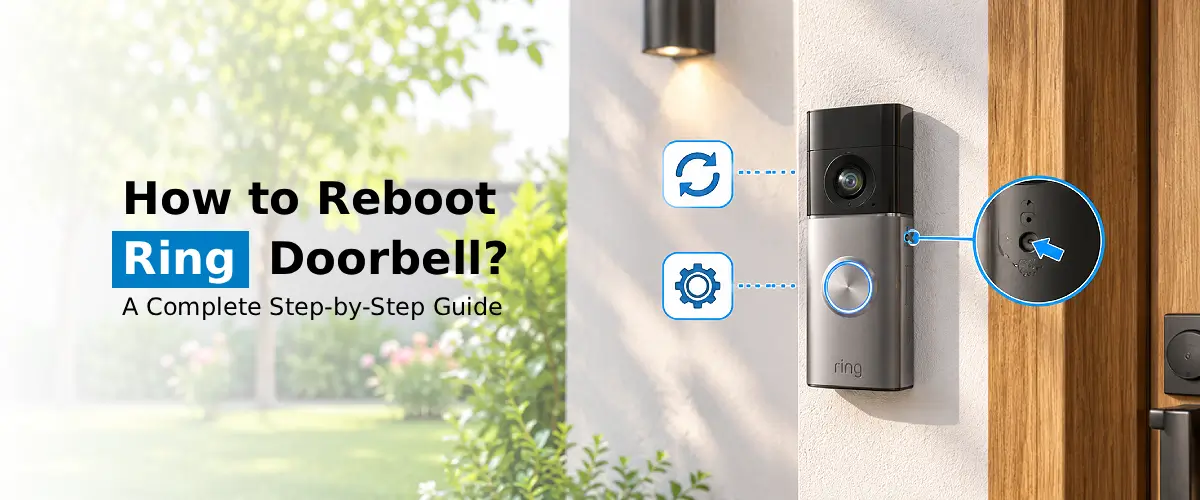
To reboot Ring Doorbell, first ensure that your Ring Doorbell is fully charged or has a strong wired connection. Open the Ring app, select your doorbell, go to ‘Device Health’ and ensure the connection is good. Then, if you have a model of Ring Doorbell that can be restarted, follow the instructions. Otherwise, remove and insert the battery or unplug it for a few seconds. This will restart your device and will clear any issues but will not cause you to lose any settings.
A Ring Doorbell allows you to keep an eye on your front door, get instant notifications of motion, and also chat to visitors. Like many smart home gadgets, sometimes things can go wrong with your Ring Doorbell including connection problems, delayed notifications, freezing video feed and not responding camera. In many cases, simply rebooting your Ring Doorbell will solve the issue. Knowing how to reboot Ring Doorbell properly can help get your Ring Doorbell back to working as expected. In this guide, we will show you how to reboot your Ring Doorbell using the Ring App, reboot your Ring Doorbell without using the app, factory reset it, and troubleshoot common issues.
Why Do You Need to Reboot Your Ring Doorbell?
A Ring Doorbell can be restarted to fix any short-term software issues and to reset the network connection.
You may find that restarting your Ring Doorbell helps with:
- Wi-Fi connectivity issues: If your doorbell is having trouble connecting to your home network, restarting can help.
- Live view issues: If your camera gets stuck or is not loading live view, then restarting can help.
- Motion notifications Delay: Restarting can help to reset the device so that notifications can be sent normally.
- Unresponsive doorbell: If your doorbell is becoming unresponsive to pressing the button or using the app, then restarting can help.
- Audio issues: Sometimes restarting can help if there are short-term audio issues with the microphone or speaker.
How to Reboot Ring doorbell?
Depending on your Ring Doorbell model, you can restart your device using various methods. Start by ensuring your device has enough battery or a good wired power source.
To reboot Ring doorbell, follow the steps below
- Ensure there is enough power: Check that your Ring Doorbell has enough battery power or a solid wired connection.
- Find out what power source your model uses: This will either be a replaceable rechargeable battery or a wired power source.
- Restart the device: For devices that have a replaceable battery, take the battery out and leave it out for around 10-15 seconds.
- Replace the battery: Once you’ve left the battery out for a while, put it back in securely or reconnect your wired power source.
- Allow it to restart: Give your Ring Doorbell a few minutes to restart and reconnect to your Wi-Fi.
- Final Test: Open Ring Doorbell setup using the Ring app and test your doorbell. Ensure that you can view the live feed, motion detection and receive notifications.
This will just power cycle your device, so your settings should stay the same.
How to Reboot Ring doorbell from App?
The Ring App is a great tool to check your device status and help to troubleshoot connection issues. However, not all models will have a dedicated reboot button in the app.
Download and open the Ring App on your smartphone. Open the Ring.com login option and log in using your account details to complete the process. Find your Ring Doorbell from the Devices section and tap into Device Settings. After that, click Device Health. This will show you the battery level, wifi strength, and device connection status. If there is an option to restart or reboot your device, follow the on-screen instructions. Once restarted, allow your device time to reconnect and see if it’s working correctly. If your device doesn’t have an option for a hard reboot Ring Doorbell, then restart within your app; simply follow your specific model’s power-cycling method.
How to Reboot Ring doorbell without app?
You can reboot Ring Doorbell manually if you cannot open the Ring app or your device is not responding.
Battery Operated Ring Doorbells
Locate the security screw at the base of your Ring device. Remove the face plate using the correct screwdriver. Carefully remove the rechargeable battery (if applicable). Wait for approx. 10-15 seconds. Insert the battery back into your device. Securely fit the faceplate back onto your device and tighten the security screw. Wait for your device to turn back on.
Hardwired Ring Doorbells
If your model does not have a removable battery, do not try to remove any internal wiring. Some hardwired models will have a backup battery. If you can locate the correct circuit breaker, then switch it off. Follow the instructions to power your specific model. If you are uncertain, then contact a qualified electrician.
Difference Between Rebooting and Factory Resetting Ring Doorbell
There is a difference between rebooting and factory resetting.
| Feature | Reboot | Factory Reset |
| Purpose | Refresh device | Reset back to initial settings |
| Settings | Usually kept | Removed or reset |
| Wi-Fi | Usually kept | Wi-Fi needs setting up again. |
| Setup | Usually not needed | May need to be set up again |
| Best used for | Temporary issues | Long-term software or settings issues. |
You should always attempt to reboot before undertaking a factory reset. This is due to the fact that you may have to reconfigure your device.
How to Factory Reset Ring Doorbell?
If the issues still occur after you have tried to restart, then you may need to reset Ring Cam or Doorbell.
General steps:
- Find the setup button on your Ring Doorbell.
- Ensure the device has enough battery.
- Press and hold the setup button for around 20 seconds or according to your model.
- Release the button once there is a change in the LED light (refer to your device manual).
- Let the doorbell reboot.
- Once it has rebooted, open up the Ring app and follow the prompts to set your device up.
As you are doing a factory reset, you will need to reconnect to your Wi-Fi and go through the setup process again. The reset process and LED changes may differ depending on your model.
Common Ring Doorbell Problems and Their Solutions.
Sometimes you might need to do more than just restart your Ring Doorbell if your Ring Doorbell won’t reboot. Below are some common issues people experience and how they can be solved.
- Not restarting: Check the battery, power source, and restarting method for your specific model.
- Offline: Check the router, Wi-Fi signal, and internet connection.
- No live view: Restart the app, check the connections, and try powering off and back on again.
- Delayed motion notifications: Check the motion detection and notifications settings.
- Battery draining fast: Check the motion detection frequency, recording settings, and condition of the battery.
- Not responding to button press: Check the power, inspect the device, and restart.
- Not connecting to Wi-Fi: Try improving the router position and checking the connection strength.
If you are still experiencing issues, then check for any firmware updates, and make sure your router and internet connection are working.
FAQs:
A reboot or power cycle will usually not remove any settings, Wi-Fi or account details that have been saved on the doorbell. However, a factory reset will remove current configurations and may mean you will need to set up your doorbell again.
Yes. Depending on what type of Ring Doorbell you own, you can reboot without removing the entire doorbell from the mounting. If you have a battery-operated Ring Doorbell, you can open the faceplate and access the battery. Wired models will need to follow the power cycling instructions specific to their model.
A reboot can help with temporary issues with your Wi-Fi, as rebooting will refresh your connection. However, if you are experiencing issues due to an incorrect password, poor signal, a faulty router, or internet issues, then this will not be resolved by rebooting. Ensure your router is working properly and you are getting a strong signal.
No. Whilst rebooting will temporarily turn your device off and back on, it will usually not affect your settings. A factory reset will reset your device back to its original settings and will remove any saved settings. We would recommend trying to reboot your device first.
Your Ring Doorbell may not be responding after a reboot due to low battery, faulty power supply, software issues, or damaged hardware. Ensure your device has power and give it some time to boot up. Try following the troubleshooting steps provided for your model.
Ensure your Wi-Fi router is working properly, your internet connection is working, your network password is correct, and you are getting a good signal. Try restarting your router. If you are still having issues, check your Device Health within the Ring App and ensure it is connected to Wi-Fi.
Final Thoughts
Knowing how to reboot Ring Doorbell can help with many common issues such as connectivity, performance, and software issues. Start by carrying out a power cycle and check your device health within the Ring App. Ensure your device is connected to Wi-Fi. If you are still having issues, try carrying out a factory reset or follow the troubleshooting steps for your model. Checking your battery levels and firmware updates regularly can also help keep your Ring Doorbell working reliably.